
- What Are Business Text Alerts, and Why Send Them by Text?
- Ways to Send Scheduled Text Alerts From Email
- How to Schedule a Text Alert From Gmail or Outlook
- How to Set Up Text Alerts for Businesses in 5 Steps
- Who Holds the Clock: What Happens Between Schedule Send and the Text
- Best Practices for Scheduled Team Text Alerts
- How Much Does It Cost to Set Up Business Text Alerts?
- Where Teams Use Scheduled and Event-Driven Text Alerts
- Send Business Text Alerts Without Changing Existing Workflows
- Frequently Asked Questions
Get Your First Text Alert Live
How to Set Up Text Alerts for Business, Including Scheduled Alerts From Email (No Developer Required)

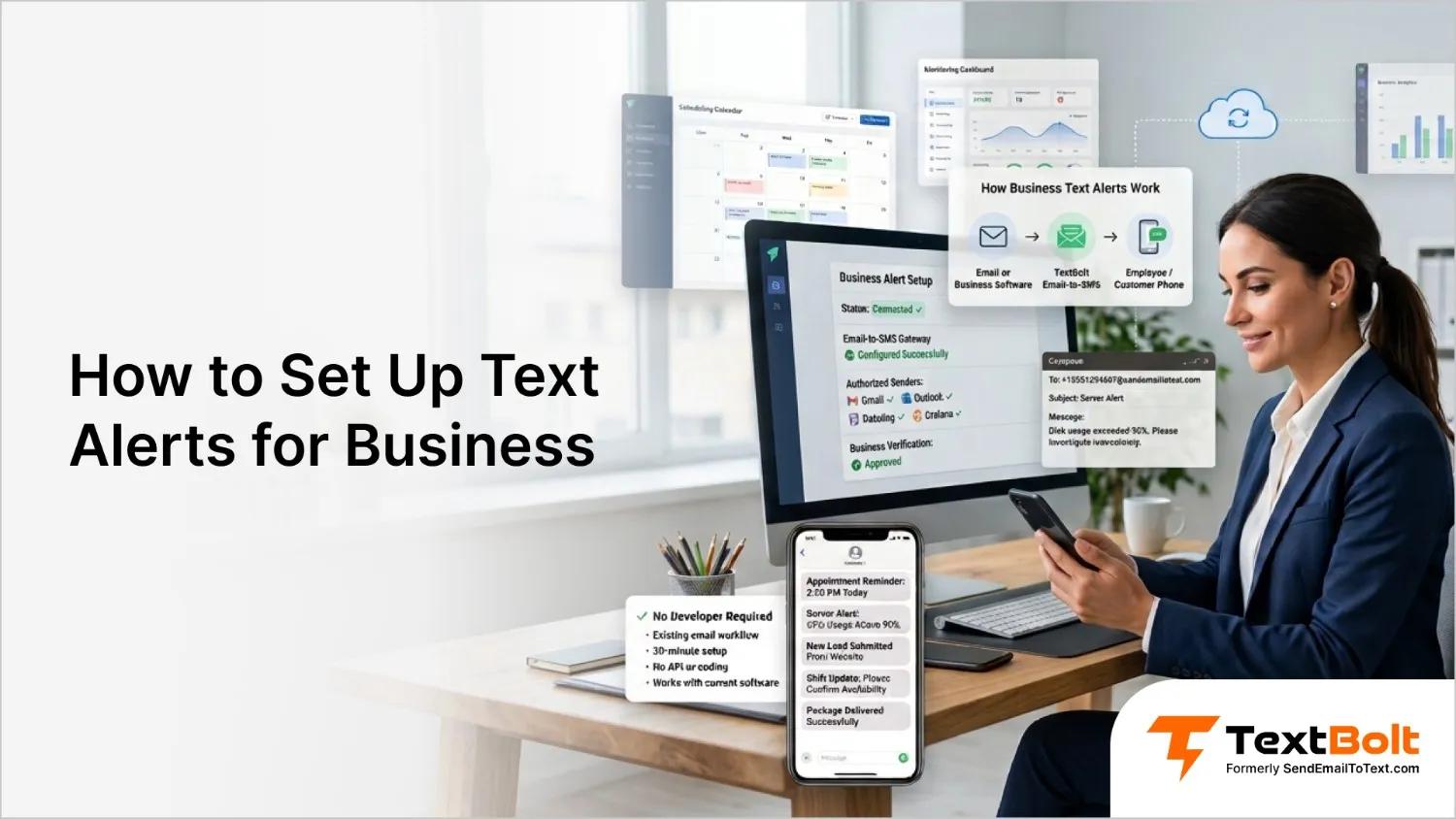
To send scheduled text alerts from email to a business team, use a 10DLC-registered email to SMS gateway such as TextBolt with any email app or software built-in Schedule Send. Address the email to +1[PhoneNumber]@sendemailtotext.com, schedule it, and each teammate gets a text at the scheduled time. If it can send an email, it can send a text, and your team does not need a developer to set it up.
At 4 PM on a Friday, you learn that Saturday’s 6 AM boiler inspection has moved to 7. The four techs on the weekend rotation will not open email before they leave home.
You write the update now, schedule it for 5:30 AM Saturday, and send it to each tech’s gateway address. At 5:30 the email client releases the email, the gateway turns it into a text from your business number, and four phones buzz.
In this guide, you will learn the three ways businesses send scheduled text alerts, how to schedule one from Gmail or Outlook step by step, which carrier email-to-text gateways no longer work, and what happens between the scheduled send and the text arriving.
TextBolt at a Glance
- No developer needed: Any system or inbox that can send an email can send a text through the gateway address.
- Address format: A TextBolt recipient address follows the pattern +1[PhoneNumber]@sendemailtotext.com.
- Two-way: When a teammate texts back, the reply threads back into your inbox.
- Registration: US business texting requires A2P 10DLC registration. TextBolt is a Verified A2P 10DLC business sender and handles 10DLC compliance registration for each US account.
What Are Business Text Alerts, and Why Send Them by Text?
Business text alerts are SMS messages businesses use to notify employees, customers, vendors, or other stakeholders about time-sensitive information. Examples include outages, appointment reminders, system alarms, security incidents, and delivery updates. A scheduled text alert is the same message set to go out at a future date and time instead of the moment it is written.
Businesses send text alerts because some information is too important to wait for someone to check their email:
- Reach people faster: A service interruption, appointment change, security notice, or urgent operational message reaches the right people directly on their phones.
- Improve customer communication: Proactive appointment reminders, order updates, and delivery notifications reduce missed appointments.
- Keep teams informed during critical events: Employees respond faster to equipment issues, IT outages, emergencies, and schedule changes.
- Automate routine notifications: When existing systems are connected to SMS, an event sends the alert without anyone typing it.
Ways to Send Scheduled Text Alerts From Email
Every working method needs a dedicated service between your email and the phone. That service can be an email to SMS gateway, a business texting platform, or an SMS API. Email alone does not reach a phone reliably anymore.
| Method | How scheduling works | Best for | Setup effort |
|---|---|---|---|
| Email to SMS gateway + Schedule Send | Gmail or Outlook holds the email until the set time, then the gateway sends it as SMS | Teams and systems that already send email | Low |
| Business texting platform or team-scheduling software | The platform’s own scheduler sends the text | Campaigns, subscriber lists, shift rosters | Low to medium |
| SMS API or workflow automation tool | Your code or a workflow tool triggers the send at a set time | Custom applications and multi-app workflows | Medium to high |
1. Email to SMS Gateway With Gmail or Outlook Schedule Send
- How it works: You send an email to a gateway address, and the service converts it into a text from a registered business number. With TextBolt, the address is +1[PhoneNumber]@sendemailtotext.com. Other email-to-SMS providers use their own formats. ClickSend uses mobile-number@sms.clicksend.com and Textmagic uses phonenumber@textmagic.com.
- How scheduling works: Your email client’s Schedule Send holds the email. Textmagic’s own guide gives the same advice: use built-in email scheduling, like Gmail’s “Send Later”, to time SMS messages.
- Best for: Teams that live in Gmail or Outlook, and system senders such as scheduling tools, monitoring platforms, and help desks that already generate email.
- Trade-offs: The email client controls timing, so recurring schedules come from the system sender, not the inbox. Each provider handles sender verification and address formatting differently.
For background, read how an email-to-SMS gateway works.
2. Business Texting Platform or Team-Scheduling Software
- How it works: You log in to a dashboard, build a contact list or group, write the message, and send it from the platform. Shift and scheduling software sends texts automatically when a roster is published or changed.
- How scheduling works: A built-in scheduler sends one-time or recurring messages at a chosen date and time.
- Best for: Promotional campaigns, subscriber lists, and teams whose schedules already live in a shift tool.
- Trade-offs: Your team adopts and maintains another dashboard, and contacts live outside the inbox.
- Examples: SimpleTexting, EZ Texting, Textedly
3. SMS API or Workflow Automation Tool
- How it works: Developers call an SMS API from an application, or a workflow tool connects a trigger (a calendar event, a form entry, a spreadsheet row) to an SMS action.
- How scheduling works: A cron job, a delayed job, or the workflow tool’s own schedule trigger fires the send.
- Best for: Software companies where SMS is part of the product, and teams that already automate across many apps.
- Trade-offs: You need developer resources, API configuration, testing, and ongoing maintenance, and each workflow step is another point that can fail.
- Examples: Twilio (programmatic SMS, strong for custom builds), Plivo, Sinch; workflow tools Zapier, Make and Power Automate.
To decide between the first and third routes, compare the difference between email to SMS and SMS API.
How to Schedule a Text Alert From Gmail or Outlook
This is the procedure for a one-time team alert, such as a roster change, a planned maintenance window, or a morning check-in.
- Compose the email: Put the alert in the subject and body. Both become the text, so keep them short.
- Address it to the gateway: In the To field, enter +1[PhoneNumber]@sendemailtotext.com for each teammate, with their 10-digit mobile number in place of [PhoneNumber].
- Schedule it:
- Gmail: At the bottom left, next to Send, click the Down arrow, click Schedule send, and pick a date and time.
- Outlook: Use Outlook’s schedule or delay-send option and pick a date and time.
- The gateway sends the text: When the scheduled email is delivered, it is converted into a text from your business number. Replies thread back to the inbox that sent it.
Schedule Send uses the sender’s time zone, not the recipient’s. A sender in Chicago scheduling for a crew in Denver needs to adjust for the difference. See how Gmail to text works.
How Do You Send One Scheduled Alert to the Whole Team?
Each teammate has their own gateway address, so a team alert is one email with several addresses in the To field. You do not need to know which carrier anyone uses. One destination address per recipient replaces carrier-by-carrier address guesswork, and delivery works across all major US and Canadian carriers.
To avoid retyping the list, save the team’s gateway addresses as a contact group in Gmail or Outlook and pick the group when you compose the alert.
What About Recurring Alerts?
Schedule Send is built for individual emails. For a weekly shift reminder or a daily 6 AM check-in, let the system that already sends the email on a schedule (your scheduling tool, help desk, or monitoring platform) send it to the gateway address on its own timetable. Every email it sends becomes a text, and nothing in that system changes except the destination address.
How to Set Up Text Alerts for Businesses in 5 Steps
You can set up text alerts for your business without writing code or building a custom SMS integration. With TextBolt, the initial setup takes about 30 minutes of active work. Once everything is configured, sending an alert is as simple as sending an email.
TextBolt works by connecting your existing email-based workflows with a business text messaging platform, allowing your current tools to send text alerts without changing how your team works.
Here is how to get started:
1. Create Your TextBolt Account and Complete Business Verification
Create your TextBolt account and provide your business details. TextBolt helps manage the A2P 10DLC registration process required for compliant business messaging.
This registration helps ensure your messages are sent through approved carrier channels. The process is handled in the background and typically clears within one to two business days, allowing you to continue preparing your alert workflows while your messaging profile is reviewed.
2. Configure Your Sending Number
TextBolt sends business alerts through approved messaging channels. If you need a dedicated toll-free number reserved exclusively for your account, you can add one for $45/year.
A dedicated sender identity helps businesses maintain consistent communication when sending customer updates, employee notifications, or operational alerts.
3. Add the TextBolt Email-to-SMS Gateway
TextBolt works with the email systems and business tools you already use. Instead of building a custom SMS integration, send your alert emails to the TextBolt gateway address:
+1[PhoneNumber]@sendemailtotext.com
You can send alerts from Gmail, Datadog, Grafana, or any SMTP-enabled system. Your existing tools continue generating email notifications while TextBolt converts those messages into SMS alerts and delivers them to the right recipients.
For reliable delivery and predictable messaging costs, keep alerts concise. A standard SMS supports up to 155 characters when using standard GSM characters. Messages containing emojis, special characters, or longer content may be split into multiple message segments.
4. Send a Test Alert to Your Phone
Before connecting your live systems, send a test message to confirm your workflow is working correctly.
Compose an email to your own phone number using the TextBolt gateway format:
+1[PhoneNumber]@sendemailtotext.com
Send the message and confirm that it arrives as an SMS on your device. If two-way A2P messaging is enabled, reply to the text and verify that the response threads back into your email inbox.
This quick test confirms that your recipient settings, message formatting, delivery, and reply workflow are ready before you automate business notifications.
5. Connect Your Existing Business Systems
Once your test alert works, connect TextBolt with the systems that already generate notifications.
Common examples include:
- Scheduling software sending appointment reminders
- Monitoring tools sending downtime alerts
- Help desk platforms sending ticket updates
- Contact forms triggering customer notifications
- Internal applications sending team alerts
Your existing software continues working the way it does today. TextBolt simply acts as the bridge between your email-based workflows and SMS delivery, allowing businesses to add text alerts without rebuilding their systems or managing another communication platform.
Note: If you previously relied on free carrier email gateways such as @vtext.com, @txt.att.net, or @tmomail.net, update those workflows to a dedicated email-to-SMS service. Carrier gateways are being discontinued, and moving to an AT&T email-to-text alternative helps ensure your alerts continue reaching recipients reliably.
Every Missed Alert Started as an Unread Email
Your scheduling tool, monitoring platform, and help desk already send the email. Point one of them at TextBolt and the next alert arrives as a text instead of sitting in an inbox nobody checked.
Who Holds the Clock: What Happens Between Schedule Send and the Text
Scheduling the email is only the start. In practice, three different parties handle a scheduled alert, and each one can fail in its own way. TextBolt moves the message. It does not keep the schedule, and it is not an escalation system.
| Stage | Who controls it | What can go wrong | How you check |
| 1. The scheduled email waits | Gmail or Outlook | Wrong time zone; Gmail may send a few minutes late | The sent time on the email |
| 2. The email reaches the gateway | Your mail server, then TextBolt | A typo in the address or a missing +1 | Delivery status in the TextBolt dashboard |
| 3. The email becomes a text | TextBolt | A signature or disclaimer turns a one-line alert into several segments | Your own test send |
| 4. The carrier delivers from your business number | The recipient’s carrier | The recipient’s number blocks the message | Delivery status in the TextBolt dashboard |
| 5. A teammate replies | The teammate’s phone, then your inbox | The reply lands in an inbox nobody watches at 5:30 AM | The threaded reply email |
Two limits to plan around:
- No automatic retry: TextBolt does not automatically retry a failed message and does not alert you when a recipient number is blocked. Delivery status appears in the TextBolt dashboard, so check it after important scheduled sends.
- No acknowledgment tracking: If an alert needs a confirmed response before someone escalates, keep that logic in an on-call tool such as PagerDuty or Opsgenie and use TextBolt as the SMS leg. If the system does not see a reply, assume nobody saw the text.
Best Practices for Scheduled Team Text Alerts
- Get documented opt-in from every teammate: Under the TCPA and carrier messaging guidelines, keep consent records, respect preferences, and give recipients a way to opt out. This applies to staff as well as customers.
- Send alerts only when they matter: Use SMS for information that needs awareness or action. Routine updates sent by text teach people to ignore the next one.
- Keep each alert under 155 characters: A standard SMS holds up to 155 characters of standard GSM text. Emojis, special characters, or longer content may split into multiple segments, which raises cost.
- Strip signatures and disclaimers: The subject and body become the text, so remove footers, logos, and legal boilerplate before you schedule.
- Schedule inside working hours and mind time zones: Send non-urgent alerts during the recipient’s working day. Schedule from the recipient’s time zone, or adjust for it.
- Make replies easy to manage: Send from an inbox someone actually monitors, so a “running late” reply reaches the right person.
How Much Does It Cost to Set Up Business Text Alerts?
Cost depends on message volume and how many team members need access:
- Basic plan: $29/month with 500 message credits per month. This suits small businesses sending appointment reminders, internal notifications, and customer updates.
- Standard plan: $49/month with 1,000 message credits per month and support for up to 10 team members, for growing teams that need shared access and higher volume.
- Dedicated toll-free number: $45/year, if you want a number reserved exclusively for your account.
Both plans include email-to-SMS. See the complete TextBolt pricing plans.
Where Teams Use Scheduled and Event-Driven Text Alerts
| Use case | Typical alerts | Usually scheduled or event-driven? |
|---|---|---|
| Customer notifications and service updates | Appointment reminders and confirmations, order and delivery updates, payment reminders, account updates | Scheduled |
| Employee communication and internal alerts | Shift changes, schedule updates, team announcements, on-call alerts, lone-worker check-ins | Both |
| IT monitoring and system notifications | Server downtime, network monitoring, application errors, security alerts, infrastructure warnings | Event-driven |
| Emergency and safety notifications | Emergency staff notices, weather updates, facility closures, safety warnings, incident notices | Event-driven |
| Business operations and workflow alerts | New leads, help desk tickets, inventory alerts, equipment monitoring, workflow approvals, contact form submissions | Event-driven |
| Customer engagement and promotions | Offers, event reminders, product announcements, loyalty updates, only with prior express written consent | Scheduled |
Schools, government organizations, churches, and public safety teams use email-to-SMS for emergency updates. IT teams use it to notify the team about server downtime.
Send Business Text Alerts Without Changing Existing Workflows
Most businesses already have systems that generate important notifications every day. Scheduling tools send reminders, monitoring platforms detect issues, and help desks create updates but those alerts often stay trapped in email inboxes.
TextBolt bridges that gap by converting existing email notifications into SMS alerts. Businesses can continue using the tools they already rely on without building custom integrations, managing APIs, or changing their daily workflows.
Why Businesses Choose TextBolt for Text Alerts
- Works with existing systems: Connect tools such as scheduling software, monitoring platforms, help desks, CRMs, and internal applications through email-based workflows.
- No custom development required: Businesses can send a text with no SDK and use email-based workflows instead of complex API projects.
- Quick setup: Get your alert workflow running in about 30 minutes and start sending notifications from the email systems your team already uses.
- Two-way communication: Receive replies back in your inbox, allowing customers, employees, and teams to respond without switching platforms. Send text from email and receive replies to your email.
- Built for business alerts: Send appointment reminders, system notifications, employee updates, and operational messages without the complexity of marketing-focused SMS platforms.
With TextBolt, businesses can add SMS communication to their existing workflows and make sure important updates reach the right people when they matter most.
Getting a text alert workflow running does not require a lengthy implementation project. With TextBolt, setup takes about 30 minutes, while business verification and messaging registration happen in the background.
Start Sending Business Text Alerts With TextBolt
Turn existing email notifications into SMS alerts instantly — no coding, no new tools, and no workflow changes.
Frequently Asked Questions
What is the difference between text alerts and SMS marketing campaigns?
Text alerts are SMS messages that notify employees, customers, or vendors about time-sensitive information such as outages, appointment changes, or system alarms. SMS marketing campaigns promote offers, events, and products to subscriber lists, and they need prior express written consent. Alerts usually come from existing systems or an inbox, while campaigns are typically built in a texting platform’s dashboard.
Can a business set up text alerts without writing any code?
Yes, a business can set up text alerts without any code by using an email-to-SMS service. Any system that already sends email, including scheduling software, monitoring tools, and point-of-sale systems, can send an alert by emailing a gateway address. There is no API, SDK, or developer required, and the initial setup takes about 30 minutes.
Where do replies to a text alert go once someone responds?
Replies to a TextBolt alert land in the original sender’s email inbox as a threaded reply. When a customer or staff member texts back, the message is converted to email so the whole conversation stays in Gmail or Outlook. This keeps your inbox as the record of the exchange and means no one has to monitor a separate dashboard to catch responses.
Can text alerts be sent directly from Gmail or Outlook?
Yes, text alerts can be sent directly from Gmail, Outlook, Apple Mail, or any SMTP email client. You address an email to the recipient’s phone number at the gateway address, write the alert in the body, and send it like any normal email. The recipient receives a standard SMS on their phone, and there is nothing to install in your email client.
What should businesses use instead of txt.att.net or vtext.com for alerts?
Switch to a registered email-to-SMS gateway. First, find every system and contact list that sends to @txt.att.net or @vtext.com addresses, including monitoring tools, alarm panels, scheduling software, and saved contacts. Replace each address with the gateway format (+1[PhoneNumber]@sendemailtotext.com). The same address works for every carrier, so you don’t need to know who each person uses, and messages arrive from your verified business number. Before Verizon’s shutdown deadline, send a test alert to a Verizon phone to confirm delivery while the old address still works.
When should a business move from manual texts or calls to automated alerts?
Move to automated alerts when information is too important to wait for someone to check email, or when the same notification is sent repeatedly by hand. If your scheduling tool, monitoring platform, or help desk already generates the email, an event can send the text without anyone typing it. Keep SMS for messages that need awareness or action, because routine updates teach people to ignore the next one.
Does sending business text alerts require 10DLC registration?
Yes, sending business SMS to US recipients requires A2P 10DLC registration, which verifies your business with the carriers. TextBolt handles this 10DLC registration on your behalf as part of setup, and it typically completes within one to two business days. You can start a free trial and send test messages while verification processes in the background.
Does a free trial exist for testing text alerts before paying?
Yes, TextBolt offers a 7-day free trial so you can test text alerts before paying for a plan. A card is required to verify the account, but there is no charge during the trial and you get a reminder before billing begins. That window is enough to run a real test alert, confirm delivery, and point one live system at the gateway.
Can text alerts be triggered automatically from monitoring tools or web forms?
Yes, text alerts can be triggered automatically from any tool that sends email, including monitoring software, uptime checks, and web forms. You add the gateway address as a recipient in that tool’s existing notification settings, and each event becomes an SMS. Monitoring platforms like Grafana and Datadog work this way, and a web form submission can become an instant text to the right person.
How do I troubleshoot a scheduled text alert that arrived late or not at all?
Check the stages in order: the sent time on the scheduled email (wrong time zone, or Gmail sending a few minutes late), then the recipient address for typos or a missing +1, then the delivery status in the dashboard. A blocked recipient number can also stop delivery. There is no automatic retry and no alert when a number is blocked, so review delivery status after important scheduled sends.
How can I send text alerts to employees without hiring a developer or adding a new app?
Use an email-to-SMS gateway. You send an email to each employee’s gateway address from Gmail, Outlook, or any tool that already sends email, and they receive a standard text message. There’s no API to build and no developer to hire. Staff don’t install anything, and your team keeps working in the inbox they already use.
Is there a simpler alternative to Twilio for business text alerts?
If your alerts already go out as email, an email-to-SMS gateway like TextBolt does the same job without code. Twilio is built for developers adding SMS to their own software, so it needs API setup, testing, and upkeep. TextBolt takes about 30 minutes to set up, runs on a flat monthly plan, and handles 10DLC registration for you.