
- Who is Considered a Lone Worker?
- Why is a Missed Check-In the Lone Worker Alarm?
- What Working-Alone Rules Actually Require?
- Lone Worker Check-In Methods Compared
- How Does a Text Message Check-In System Work?
- Why Lone Worker Check-In Texts Stopped Arriving, and the Fix
- How Often Should Lone Workers Check In
- The Watcher: What Notices a Missed Check-In
- Building the Lone Worker Escalation Ladder
- Test the Failures, Then Run a Pilot
- What Goes Into a Written Working-Alone Procedure
- Getting Your Lone Worker Check-In System Running
- Frequently Asked Questions
Keep Lone Worker Check-Ins Simple
Lone Worker Check-In Systems: How They Work

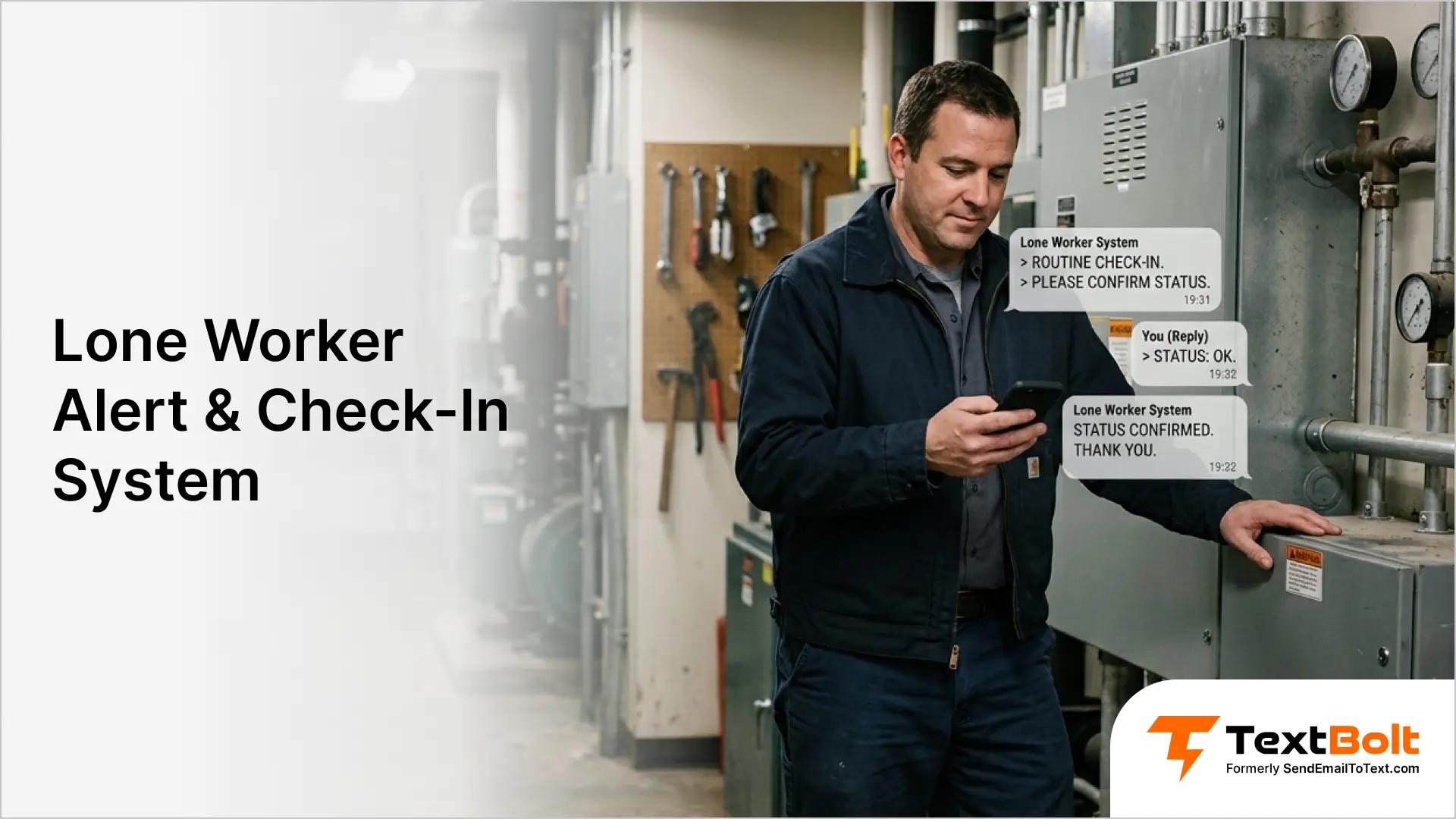
At 9 PM your maintenance tech walks a three-story building alone. The rule says they text you when they are out. Your phone is charging in the kitchen. They finish at 9:40, forget to text, and drive home. Nothing was wrong that night.
That is the trap. Nothing is wrong on almost every shift, which is how an informal habit earns years of false confidence. The one night it matters, nobody can say when they informed you last time.
Lone worker check-in and safety alert texts can be sent straight from an email inbox using an email to SMS gateway like TextBolt: the system emails a gateway address such as +15551234567@sendemailtotext.com, and it arrives on the worker’s phone as an ordinary SMS, with no app to install. These texts fire on the schedule your plan sets, and the reply threads back to the same inbox, timestamped for the safety file.
The gateway moves the message. It does not watch the clock, and it is not a panic button. In this blog post, you will learn how to build the part that notices when a check-in never arrives.
Who is Considered a Lone Worker?
A lone worker is anyone working out of sight and hearing of a coworker who could summon help. Distance is not the test. Whether anyone would notice trouble is the test.
That definition covers more roles than most teams expect.
- Maintenance and janitorial staff on night rounds
- Field technicians at unstaffed sites
- Property managers walking vacant units
- Utility, pump station, and treatment plant operators
- Home visit staff in healthcare and social services
- Late shift retail, warehouse, and manufacturing staff
- Drivers making solo deliveries or service calls
Someone inside a busy building can still be a lone worker. A tech in a locked mechanical room three floors below the nearest person qualifies, even though the building is occupied.
Why is a Missed Check-In the Lone Worker Alarm?
Most lone worker alarms wait for something to happen and stay quiet until it does. A check-in system inverts that, because the event it waits for is a reply, and the absence of that reply is the warning. An alarm built on silence has no button to press.
Dedicated safety platforms fire on three kinds of event: a missed check-in timer, an SOS or panic-button press, and a man-down or fall-detection trigger, and they dispatch the alert across channels, typically SMS plus email, sometimes an automated phone call. A text check-in system covers only the first of those three. It catches the missed timer. It does not sense a fall or a pressed button, and that boundary decides which jobs it fits.
Building a system around an absence raises three questions: how often a worker checks in, what watches for a missed check-in, and which approved plan starts the moment one is missed. None of those answers should come from a messaging vendor, including this one.
What Working-Alone Rules Actually Require?
Laws about working alone are different in each place.
- British Columbia’s WorkSafeBC guidance asks for a written check-in plan, a set schedule, one named contact person, written records of each check-in, an end-of-shift check, and worker input on the schedule.
- Alberta’s OHS Code, Part 28 requires a real way to stay in contact with a lone worker, on a schedule that matches how dangerous the job is.
- In the United States, OSHA does not have one general rule for every job where a person works alone. But some industries have their own rules. For example, shipyard rule 1915.84 requires checking on certain lone workers at set times and at the end of their shift.
This is not legal advice. It is not a safety rule book. Read the real law for your state, province, industry, and job. Ask a licensed safety professional to review your plan. This article only describes one messaging tool to think about, not a finished, legal plan.
What every one of these frameworks shares is a requirement for contact on a schedule, which is the one part a messaging tool can genuinely carry for you. Setting that up is a matter of learning how to send email to text from the inbox your team already uses.
Lone Worker Check-In Methods Compared
Most teams building a lone worker system are weighing four practical options, and the right one comes down to how hazardous the work is and what you can realistically ask a worker to do.
| Method | Best fit | What the worker has to do |
| Text message reply | Everyday lone work across small and mid-size teams | Send one text |
| Safety app check-in | Teams already issued company smartphones | Install the app, log in, keep it updated |
| Automated phone line | Sites where texting is unreliable | Call in and enter a code |
| Monitored lone worker safety alarm | Hazardous work flagged by your safety review | Carry and charge a dedicated device |
Text wins on what decides adoption, which is what you ask the worker to do. One text holds up across shared phones, older handsets, and crews that will not take on new software.
Hazardous work is the exception. Confined spaces, energized systems, and remote sites belong with a monitored device.
Send Scheduled Check-In Texts From The Inbox Your Team Already Uses
TextBolt turns email into text messages with no app to install, no dashboard to learn, and no code to maintain.
How Does a Text Message Check-In System Work?
Sending the message is the simple half of the system, and TextBolt handles it by converting an outgoing email into a text and routing the reply back into the same inbox.
At each scheduled time a short text goes to the worker from an approved business number, and the worker replies in a fixed format.
OK 2100 SITE 4
From Prompt to Record Without an App
The whole point of this setup is that the worker installs nothing. Here is what happens at each scheduled check-in.
| Step | Who does it | What happens |
| 1. The prompt goes out | Supervisor or a scheduled rule | An email leaves Outlook or Gmail, addressed to the worker’s number at the gateway domain, +15551234567@sendemailtotext.com |
| 2. The conversion | TextBolt | That email becomes a standard text message on the carrier network |
| 3. The prompt lands | Lone worker | A normal text arrives on their phone asking them to confirm |
| 4. The reply | Lone worker | They text back in the agreed format, with no app to open and no password to remember |
| 5. The record | Supervisor | The reply returns to the same inbox as a normal email, timestamped for the safety file |
The no-app requirement is not a preference. Workers who share a handset, use an older phone, or refuse to install employer software will not adopt an app, and a check-in system half the crew skips produces silence that means nothing.
That destination address is one string per recipient. Where a free carrier gateway once needed a different domain for every network (phonenumber@txt.att.net for AT&T, @vtext.com for Verizon), the replacement address stays the same shape regardless of the worker’s carrier.
Who Gets a Text and Who Gets an Email
This is the part teams usually get backwards, so state it early in your written plan.
| Person | What they receive | Where it arrives |
| The lone worker | A text message | Their phone |
| The watcher or office | An email | Gmail, Outlook, or any inbox |
| A supervisor being alerted | A text message | Their phone |
Only the worker is texting. Your watcher is not staring at a phone screen at 9 PM. They are looking at an inbox, or an automated rule is looking at that inbox for them.
This is the same routing behind any workflow built to send SMS notifications from work email rather than from one person’s personal device.
Scheduling the Check-In Prompt
The gateway converts email into SMS. It does not run its own repeating scheduler. The timing comes from your email client instead.
Gmail’s native Schedule Send fires a one-off message at a set time. For a nightly pattern, a recurring calendar reminder or a Google Apps Script triggers the send, a setup covered in our guide to schedule SMS from Gmail.
Send the prompt from your side first rather than expecting a cold inbound text to route correctly. Confirm the sending number, the reply path, the inbox, the timing, and cell coverage at your real sites before anyone depends on it.
The Reply Format and Wallet Card
Make a small card for each worker. Put the sending number, the reply format, a site code, the normal check-in time, and a separate method for real emergencies.
Use a site code instead of writing the real location into the text. Keep a private list matching each code to its site.
Before you plan any of this, find out who owns a phone that can text, who shares one, what texting costs them, and what backup exists where there is no signal.
Why Lone Worker Check-In Texts Stopped Arriving, and the Fix
If your check-in texts once ran through a free carrier email-to-text address and quietly stopped landing, the address is the cause, not the message. The major US carriers have retired or throttled those gateways:
| Carrier | Gateway domain(s) | Status | Effective/scheduled date | Official source |
|---|---|---|---|---|
| AT&T | txt.att.net / mms.att.net | Fully retired | June 17, 2025 | AT&T support article KM1061254 |
| T-Mobile | tmomail.net | Ended | Late 2024 | https://textbolt.com/migration/tmobile2/ |
| Verizon | vtext.com / vzwpix.com | Winding down | March 31, 2027 | https://www.verizon.com/support/vtext-vzwpix-shutdown/ |
The fix is a 10DLC-registered gateway instead of the dead carrier domain. TextBolt registers each US account as a Verified A2P 10DLC sender and turns the check-in email your client already sends into an SMS over standard SMTP. An ex-AT&T setup swaps +1XXXXXXXXXX@txt.att.net for +1XXXXXXXXXX@sendemailtotext.com one-for-one, with no lookup table to maintain. The cutover runs about 5 minutes: add the forwarding noreply@ address and change the To: line.
One honest limit belongs in a safety plan. TextBolt is a drop-in replacement for the retired carrier gateways, but it does not automatically retry a failed message and does not alert you when a recipient number is blocked; delivery status shows in the dashboard instead. For a check-in workflow, that means your watcher must distinguish “no text was sent” from “the worker did not answer,” covered in the watcher section below.
How the Replacement Compares
| Feature | Carrier email-to-text gateway | Code-heavy SMS API | TextBolt |
|---|---|---|---|
| Setup effort | Change one address (when it worked) | Integration project, developer time | Change one destination address |
| Reliability after carrier shutdowns | Retired or throttled | Reliable | Verified A2P 10DLC, carrier-agnostic |
| Where replies land | Varies / often nowhere | Wherever you build the receiver | Threaded back to the sender’s inbox |
| Delivery status | Not visible | You build it | Visible in the dashboard |
| Address per recipient | One per carrier | N/A | One address, any carrier |
If your team can send an email, the check-in text sends itself, with no SDK, no code, no integration project.
Move Your Dead Carrier Gateway to a Working Address
Redirect your carrier gateway from a non-working address to an active, working address.
How Often Should Lone Workers Check In
There is no correct interval you can copy from an article, including this one. It comes from your hazard assessment, and a borrowed number is worthless as evidence if something goes wrong. What you can borrow is the reasoning.
These factors push the interval shorter.
- Higher hazard work such as energized systems, heights, or machinery
- Longer time for help to physically reach the site
- Unreliable cell coverage or known dead zones
- Locations where an injured person would not be found by anyone else
Low hazard tasks in occupied buildings close to emergency services, with reliable coverage and a tested backup, support a longer one.
A text check-in is a scheduled confirmation rather than continuous monitoring. If a worker cannot reply, nobody knows until the window closes, and that single fact is what sets your interval.
Two rules apply regardless of interval. There must be an end-of-shift check confirming the worker left safely. And the gap between a worker becoming unable to reply and someone noticing must be acceptable to your safety reviewer.
Where no gap is acceptable, the work needs a monitored device with fall detection behind it rather than a scheduled text. That decision, and the separate decision about whether a job should be done alone at all, comes before anything else in your procedure.
Ask your workers before setting the number. In British Columbia, consultation on intervals is part of the regulatory framework. Everywhere else it still produces better evidence for your reviewer and better compliance from the crew.
The Watcher: What Notices a Missed Check-In
A check-in system has two halves. TextBolt carries the message, and something on your side has to be noticed when a reply does not arrive. That job is called the watcher, and it is what turns scheduled texts into real lone worker monitoring.
Because check-ins land in Gmail or Outlook instead of a vendor dashboard, your watcher can be a person, a no-code rule, or a script, and all three read the same inbox. Pick the one that fits your team, then write down which you chose.
Level 1: A Named Person Checks the Inbox
At the scheduled time, one named person opens the inbox and records what they see. If a reply is missing, that person starts the approved next step.
Before choosing this, think about how busy that person is, when they take breaks, what happens at shift change, and who covers for them when they are out.
Level 2: An Automated Rule Checks the Inbox
A tool like Zapier or Make checks the inbox on a schedule during the approved window. A valid reply closes the check-in. No valid reply creates an alert for the named person.
Test it against duplicate replies, late replies, wrong-format replies, daylight saving changes, roster changes, and the tool itself going offline. The same inbox logic is used to trigger SMS notifications from email in other workflows.
A technical team can build this logic as a script instead. Keep a person checking manually the entire time you are testing it.
What to Document About Your Watcher
Write down who owns the watcher, who backs them up, what hours it runs, how you verify it still works, how it alerts someone if it breaks, and what the fallback is.
A daily “everything is working” email sent through the same tool that might be broken is not a real check. Pick a separate way to confirm the watcher is alive.
Run a practice drill on a schedule your safety team approves. Simulate a missed check-in without putting a real worker at risk. Time each step and record what went wrong.
Building the Lone Worker Escalation Ladder
Once a check-in is missed, the lone worker alert has to reach someone with a name, and every minute after that needs an owner. A workable ladder is short, timed, and specific about people.
- The watcher. After the window closes plus an approved grace period, record the miss and try the first contact method in the plan.
- The supervisor. If there is no answer by the next check-in time, the named supervisor tries the next contact method.
- The decision-maker. If contact still cannot be made, follow the site emergency plan, including calling for help. Site-wide notification runs through the same routing as emergency alerts.
Name a backup for every rung before you go live, covering the shifts when the watcher is sick, on break, or offline. A tool can alert that backup. Your company still owns what happens next.
Test the Failures, Then Run a Pilot
One successful reply proves the system worked once. A procedure has to hold up on the other days too, and most of what goes wrong has nothing to do with the message itself.
| What could go wrong | What your plan needs to answer |
| The worker replies late | Does the late reply get recorded without canceling an alert already in progress? |
| The reply has the wrong site code | Does a person review it, instead of the system closing the check-in? |
| The work schedule changes | What roster tells the watcher who is actually on shift right now? |
| The supervisor never responds | Who takes over, and where is that written down? |
| The automated rule breaks or turns off | What separate check catches that and tells a backup person? |
| The worker texts STOP and opts out | Carriers require STOP on every business number, so who finds out prompts stopped? |
| The worker has no cell signal | What backup method applies at that site? |
| The text is delayed or blocked | Can the watcher tell “no text was sent” from “the worker did not answer”? |
Cover the opt-out case in training, and read the SMS compliance laws before writing that language into your procedure.
Do not assume every missed reply means trouble. A silent phone, a wrong-format reply, or a stale roster produces the same silence as a real emergency, so work through the causes of messages not delivering before the pilot.
Track successful replies, late replies, missed check-ins, failed sends, how long each escalation step took, and the watcher’s workload. Your reviewer decides from that data, not from whether the texts arrived.
Then ask your workers directly. Could they reply easily? Did the texts cost them money? Were the instructions clear? Do they share a phone with someone else? Are there dead zones on site? Did the schedule get in the way of their work?
What Goes Into a Written Working-Alone Procedure
A casual check-in habit is not an approved procedure. Here is what a reviewer expects to find in the document.
- Scope: Which jobs, sites, and shifts are covered, and which are excluded because they require two people.
- The interval: The approved schedule and the hazard assessment it came from.
- Contact methods: Primary method, backup method, and the separate channel for urgent assistance.
- The reply format: Exact format, where the site code list lives, and who maintains the roster.
- The watcher: Named owner, named backup, monitoring hours, and how the watcher itself gets verified.
- The escalation ladder: Each rung with an owner, a method, a time limit, and a fallback.
- Records and retention: What gets recorded, where it lives, and how long you keep it.
- Training, review, and drills: Who is trained, who reviews the procedure, and how often a simulated miss is run.
Every one of those matters more than which inbox carries the message.
One caveat belongs in the records section. A text proves a message was sent, not who sent it, where they were, or that they were safe. Set retention on purpose, matched to your other safety documentation rather than whatever your inbox keeps by default.
Getting Your Lone Worker Check-In System Running
Most of a lone worker solution is procedure work. The interval, the watcher, the escalation ladder, and the records are yours to write. Messaging is the one piece of the system you can hand off, in this order.
- Create the account: Setup runs 10 to 30 minutes, covered field by field in the setup TextBolt guide. The trial includes 10 credits and needs card verification, with no charge until it ends.
- Submit business verification: The 10DLC registration is filed using your business name, EIN, use case, and sample messages; approval can take up to 48 hours.
- Wait for carrier approval: Up to 48 hours, and nothing sends until it clears. Start it before your pilot dates, not on the first morning of them.
- Test on your own phone: Confirm the sending number, the reply path, and the real round-trip time.
- Run the pilot: One job, one shift, current procedure still active. Trial credits cover testing the flow, not a full two-week run.
Check TextBolt pricing against your headcount and expected message volume before you scope past the pilot.
Stop Guessing When Your Lone Worker Last Checked In
TextBolt sends the check-in text and routes the reply straight in your email inbox. No apps, no portals, no devices to issue, just adding an email to SMS gateway address.
Frequently Asked Questions
What can an email-to-SMS check-in system do, and what can’t it do?
An email-to-SMS check-in can fire scheduled prompts and log the timestamped reply to an inbox, which covers the missed-check-in timer every working-alone framework asks for. It cannot detect a fall, flag a man-down event, or work as a panic button, and it does not retry a failed send or warn you about a blocked number. Work that needs those functions belongs with a monitored device.
Which alerts does a dedicated safety platform fire that a text check-in does not?
A text check-in covers only the missed-check-in timer, while a dedicated safety platform also fires on an SOS or panic-button press and on a man-down or fall-detection trigger, dispatching across channels such as SMS, email, and sometimes an automated phone call. Because a text system catches the missed timer but cannot sense a fall or a pressed button, that boundary decides which jobs it fits.
How do you check on employees working alone without an app?
One option is scheduled text messages with fixed-format replies routed to an email inbox, plus a separate tested method for noticing a missed reply. Whether it suits you depends on your safety review, local law, carrier coverage, and backup plan.
Does OSHA require lone worker check-ins?
Not as a general federal standard. Specific rules cover shipyards and electric power work, and California and Oregon add state mandates. Elsewhere, the General Duty Clause applies, and missing a work-alone policy has been cited after incidents.
What happens if a worker cannot reply?
Nothing catches it until the check-in window closes. This system does not detect falls or medical emergencies, and that is its clear limit. High-risk work needs a monitored safety device instead, with a schedule matched to the real hazard.
Is a text check-in the same as a lone worker alarm system?
No. A dedicated lone worker alarm system adds fall detection, location tracking, and a monitored response center. A text check-in confirms someone is fine on a schedule, and detects only the silence when that confirmation never arrives.
Can a text check-in system meet working-alone regulations?
It can support the written, scheduled contact plan many jurisdictions require, but the exact rules depend on your location and industry. Confirm the applicable standards with your safety advisor before relying on any plan, including this one.