
- Where Recruiting Messages Fit Into the Hiring Process
- Stage 1: Initial Outreach to Opted-In Candidates
- Stage 2: Application Confirmation and Follow-Up
- Stage 3: Interview Scheduling
- Stage 4: Interview Reminders
- Stage 5: No-Show and Reschedule Follow-Up
- Stage 6: Post-Interview Follow-Up
- Stage 7: Job Offer
- Stage 8: Closing the Loop: Decisions Go by Email or Phone
- Stage 9: Re-engaging Past Applicants Who Opted In
- Stage 10: New Hire Welcome
- Stage 11: Staffing Desk and Hiring-Team Texts
- Stage 12: Recruiting Text Examples by Industry
- Best Practices for Text Recruiting
- Compliance Before You Send
- How to Send Recruiting Text Messages Without Adding Another Tool
- Make Recruiting Texting Part of Your Existing Workflow
- Frequently Asked Questions
Text Candidates From Your Inbox
39 Recruiting Text Message Examples for Every Hiring Stage

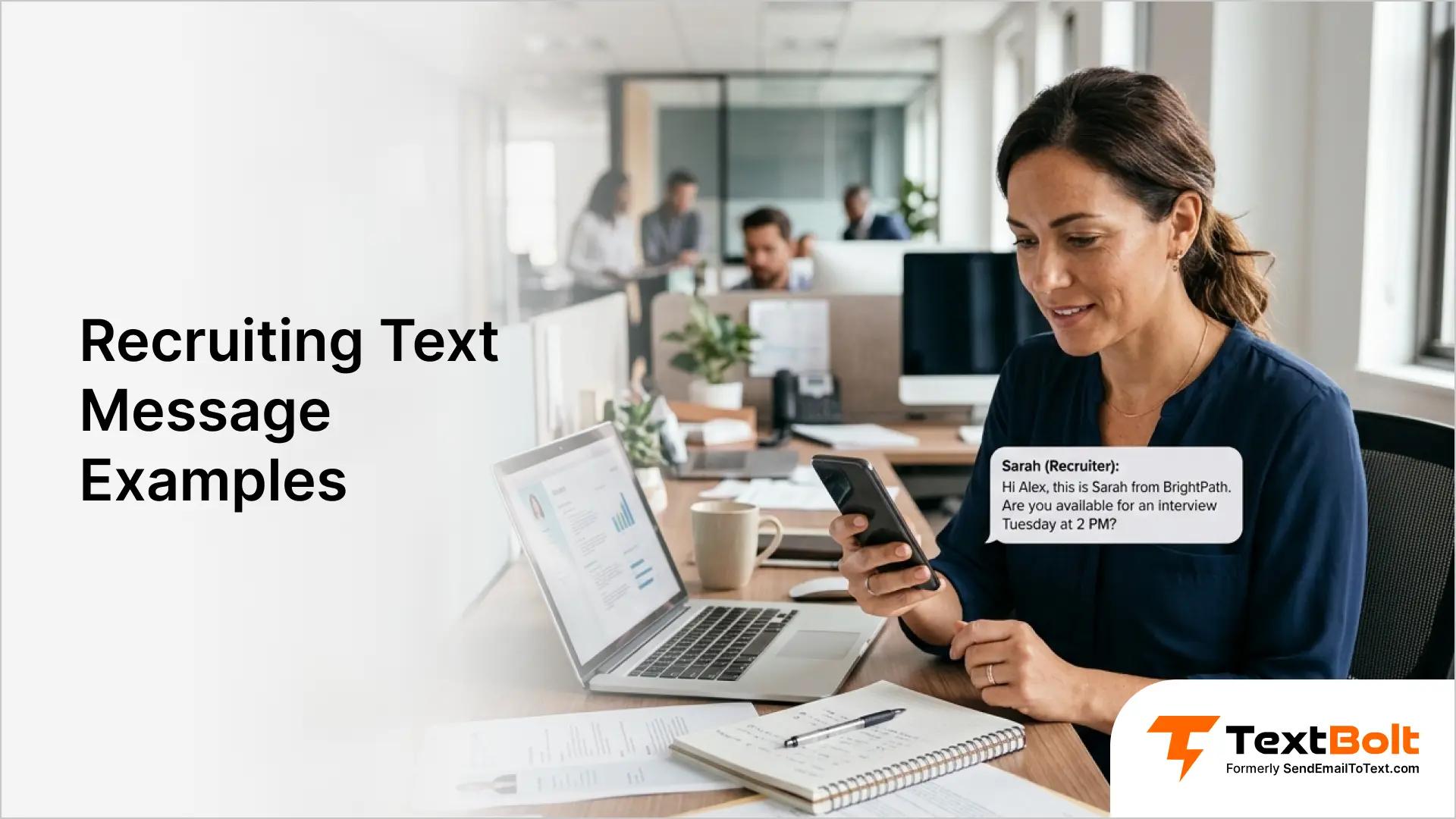
Effective recruiting text messages are short, name the sender, ask for one clear next step, and go only to candidates who opted in. Recruiters can send and receive these texts from Gmail, Outlook, or any email client with TextBolt, and two-way replies thread back to the sender’s inbox.
Every example below assumes the candidate opted in. The first text in any sequence carries opt-out wording such as “Reply STOP to opt out.” Below you get 39 copy-ready templates in hiring order, plus the practice and compliance checks to run before you send.
A candidate who doesn’t answer your call at 2 PM on a Tuesday will usually see your text and reply within minutes. That is the case for SMS in recruiting. It handles the short, time-sensitive steps that stall when they sit in an inbox. Long job details, formal offer terms and rejections still go by email or phone. The text gets the candidate there.
Where Recruiting Messages Fit Into the Hiring Process
Recruiting texts work best when they help candidates move from one hiring milestone to the next. Rather than replacing every phone call or email, SMS gives recruiters a practical way to handle the short, time-sensitive interactions that can otherwise slow down the process.
Before the Interview
The first opportunity to use SMS is often after a candidate applies or expresses interest. A short message can confirm interest, start a screening conversation, or make it easier to schedule the first interview.
Common uses include:
- Confirming whether a candidate is still interested
- Asking for interview availability
- Sending an interview scheduling link
- Confirming a selected interview time
- Answering quick questions about the role or hiring process
Between Interview Stages
Once a candidate enters the interview process, timely follow-up can help maintain momentum. Recruiters can use text to confirm upcoming interviews, send reminders, request missing information, or let candidates know when the next step is ready.
After the Interview
The period after an interview is another point where candidates can be left waiting. A brief text can acknowledge the interview, provide a status update, request additional availability, or let the candidate know when they can expect to hear back.
During the Offer and Onboarding Process
SMS can continue to support communication after the hiring decision. Recruiters can let candidates know when an offer is ready, remind them about outstanding steps, confirm their start date, or share first-day instructions.
SMS should complement—not replace—formal hiring documentation. Detailed offer terms, disclosures, policies, contracts, and anything requiring a signature should remain in the appropriate document, email, or hiring platform.
With those use cases in mind, the examples below give recruiters ready-to-adapt messages for each stage of the candidate journey.
Stage 1: Initial Outreach to Opted-In Candidates
Not every recruiting text follows an active application. Sourced candidates and past runners-up respond to a specific, low-pressure nudge far more often than a generic LinkedIn InMail.
1. Talent Community Interest Check
Use this for a candidate who joined your talent community or event list and checked the box to receive texts about openings.
Example: Hi [First Name], [Recruiter Name] at [Company]. You signed up for job texts, and a [Role] role just opened. Want details? Reply YES. Reply STOP to opt out.
2. Consented Referral Introduction
Send this only after the referring employee confirms the candidate agreed to hear from you by text.
Example: Hi [First Name], [Recruiter Name] at [Company]. [Referrer Name] referred you for our [Role] role. Open to a 15-min call this week? Reply STOP to opt out.
3. Employee Referral Request
Send this to current employees who receive work texts when a role opens. Referral hires typically move through the pipeline faster than candidates from any other source.
Example: Hi [First Name], [Recruiter Name] at [Company]. We’re hiring a [Role]. Know someone who’d fit? They can apply at [Link]. Referral bonus applies.
Stage 2: Application Confirmation and Follow-Up
When to send: within minutes of an application landing, before the candidate assumes it disappeared into a portal with no one on the other end.
4. Application Received
Send this within minutes of an application landing, before the candidate assumes it disappeared into a portal with no one on the other end.
Example: Hi [Candidate], thanks for applying to [Role] at [Company]. We’re reviewing applications now and will follow up by [Date]. Reply STOP to opt out.
5. Quick Information Request
Use this when a single answer, such as a start date or a certification, would let you move the application forward today.
Hi [First Name], [Recruiter Name] from [Company] with one quick question to keep your [Role] application moving: what’s your earliest start date? Reply with a date.
6. Phone Screen Invite
Use this to move a resume that stood out straight to a scheduling reply, instead of a cold call the candidate has no reason to pick up.
Example: Hi [Candidate], your resume for [Role] stood out. Can you do a 20-min phone screen this week? Reply with a day and time that works, or call [Number].
Stage 3: Interview Scheduling
When to send: Once a candidate clears the screen. A candidate juggling a current job doesn’t want a back-and-forth email chain to land on a time. They want to confirm from their phone between meetings.
7. Interview Invitation
This is usually the first text a candidate gets after clearing the phone screen, so lead with the good news before asking for a time.
Example: Hi [Candidate], great news, [Company] would like to bring you in for a [Round] interview for [Role]. Are you available [Date/Time Window]? Reply with your preference.
8. Interview Confirmation
Send once a time is locked in. The reply becomes a written record if a no-show or scheduling dispute ever comes up later.
Example: Hi [Candidate], you’re confirmed for a [Round] interview with [Company] on [Date] at [Time], [Location/Link]. Reply Y to confirm. Reply STOP to opt out.
Stage 4: Interview Reminders
When to send: Twice. Send one a day before and one a couple of hours before. A reminder 24 hours out catches a candidate before their week fills in. The same-day nudge is what actually prevents the last-minute no-show.
9. Phone Screen Reminder
Use this a few hours before a phone screen, so the candidate expects a call from a number they may not recognize.
[First Name], [Recruiter Name] with [Company] here. Reminder: your phone screen for [Role] is today at [Time]. I’ll call [Phone Number]. Reply if anything changes.
10. Day-Before Reminder
Use this 24 hours before an in-person or video interview.
Hi [First Name], [Recruiter Name] from [Company]. Reminder: your interview is tomorrow, [Date] at [Time], [Location/Link]. Reply if anything changes.
11. Morning-Of Reminder
Use this about two hours before the interview starts.
[First Name], quick note from [Recruiter Name] at [Company]. Your interview with [Interviewer Name] starts in 2 hours, [Time] at [Location/Link]. Text me if you’re running late.
Stage 5: No-Show and Reschedule Follow-Up
Send these the same day a slot goes unused or a plan changes. Speed matters more than polish here.
12. Missed Screening Follow-Up
Send this the same day a scheduled call goes unanswered, before the candidate assumes the opportunity quietly fell through.
Hi [First Name], it’s [Recruiter Name] at [Company]. I tried reaching you for your [Role] phone screen and missed you. Still interested? Reply with a better time.
13. Missed Interview Follow-Up
Use this when a candidate doesn’t show for an interview. Ask before you assume they’ve lost interest.
Hi [First Name], [Recruiter Name] here. I didn’t see you at your [Role] interview at [Company] today. Is everything okay? Reply with a day that works.
14. Reschedule Notice
Use this the moment an interviewer’s calendar changes, so the candidate hears it from you rather than showing up to an empty room.
Hi [First Name], your [Date] interview with [Company] needs to move. We have [New Date/Time] or [Alternate Time] available. Which works better?
15. Same-Day Logistics Change
Send this the moment a location or format changes. This is the one message where speed matters more than polish.
[Company] reminder: your [Role] interview is tomorrow at [Time], [Location/Link]. Reply if anything changes.
Compliance line: Schedule reminders in the candidate’s local time zone. A 7 AM Eastern reminder reaches a Pacific candidate at 4 AM.
Stage 6: Post-Interview Follow-Up
When to send: Within a day of each decision point. When there is no news, send on a set cadence. Silence between interview stages is the single biggest driver of candidate drop-off.
16. Mid-Process Status Update
Send this when there’s genuinely no news yet. More than a few days of silence reads as rejection to most candidates, whether that’s the intent or not.
Example: Hi [Candidate], quick update on your [Role] application: we’re still finalizing interview panels. We expect to have next steps by [Date]. Thanks for your patience.
17. Moved to Next Round
Send within a day of the decision, while the candidate’s interest is still at its highest point in the process.
Example: Hi [Candidate], good news, you’re moving to the [Stage] round for [Role] at [Company]. We’ll reach out within [Timeframe] to schedule. Reply STOP to opt out.
18. Post-Interview Experience Survey
Hi [First Name], [Recruiter Name] at [Company] here. Thanks for interviewing for [Role] today. On a scale of 1-5, how was your interview experience? Reply with a number.
19. Candidate Check-In Before the Final Round
A short check-in surfaces hesitation while you can still address it.
Hi [First Name], [Recruiter Name] at [Company]. No decision on [Role] yet; next update by [Date]. Questions? Reply here.
Compliance line: Follow-up texts stay tied to the candidate’s own application. Don’t append unrelated job promotions.
Stage 7: Job Offer
When to send: The moment the formal offer email goes out. An offer sent only by email can sit unopened while a candidate weighs a competing offer that landed by text an hour earlier.
20. Offer Extended
Send the moment the formal offer email goes out, so the good news doesn’t sit unread in an inbox for a few hours.
Example: Hi [Candidate], congratulations! [Company] would like to extend an offer for [Role]. Check your email for full details. Reply with any questions.
21. Offer Decision Follow-Up
Send two or three days after the offer if you haven’t heard back, before a competing offer wins the decision by default.
Example: Hi [Candidate], just checking in on the offer for [Role] at [Company]. Do you have any questions, or would a quick call help before you decide?
22. Offer Deadline Reminder
Use this as the response deadline approaches, giving the candidate a clear reason to answer instead of letting the offer lapse quietly.
Example: Hi [Candidate], reminder: your offer for [Role] at [Company] is open through [Date]. Let us know if you need more time to review.
Keep Offer and Onboarding Replies in One Thread
TextBolt sends offer nudges, start-date reminders, and paperwork follow-ups as texts from the Gmail or Outlook inbox recruiters already use, with every candidate reply threaded back automatically.
Stage 8: Closing the Loop: Decisions Go by Email or Phone
When to send: As soon as a decision is final. The decision itself belongs in an email or a call, where the candidate gets the full message and a way to respond. The text makes sure that message doesn’t go unread. Too many candidates otherwise get an auto-generated email that never arrives, or no notice at all.
23. Post-Interview Decision Call Request
Use this after an in-person or video round, where the candidate put in real time and deserves a conversation.
Hi [First Name], it’s [Recruiter Name] from [Company] with an update on your [Role] interview. Do you have 10 minutes for a call today or tomorrow? Reply with a time.
24. Application Decision Notice
Use this for resume-stage decisions, right after the decision email goes out.
Hi [First Name], I’ve emailed you an update on your [Role] application. Reply here if it doesn’t show up in your inbox. Thanks, [Recruiter Name], [Company]
25. Declined-Offer Close-Out
Use this after a candidate turns down an offer. Most recruiting funnels skip this message once there’s no obvious next step, and sending it turns a closed loop into a warm one.
[First Name], thanks for letting me know your decision. I enjoyed meeting you, and the door at [Company] stays open. Best, [Recruiter Name]
Compliance line: The decision email or call is a natural point to ask whether the candidate wants texts about future roles. If they don’t say yes, stop texting.
Stage 9: Re-engaging Past Applicants Who Opted In
When to send: The day a new opening matches someone from a past search who agreed to hear about future roles. Send it before the posting goes live publicly.
26. Runner-Up Re-Engagement
Use this with a close finalist from a past search.
Hi [First Name], [Recruiter Name] at [Company]. A new [Role] opening fits your background. Interested? Reply Y. Reply STOP to opt out.
27. New Opening Alert to a Saved Candidate List
Use this for a group send to candidates saved against a role type. Give them the title, location and pay up front.
Hi [First Name], [Recruiter Name] at [Company]. We just opened a [Role] role that matches your background. Interested? Reply Y. Reply STOP to opt out.
28. Low-Commitment Check-In
Use this with an opted-in past candidate you haven’t contacted in months. One easy question restarts the thread without pitching a specific role.
[First Name], [Recruiter Name] at [Company]. Are you open to [Role Type] work in [Area] this year? Reply YES or NO. Reply STOP to opt out.
29. Hiring Event Invite
Send this about a week ahead, with enough notice for candidates to plan around it.
[First Name], [Recruiter Name] at [Company]. Join our [Role Category] hiring event on [Date], [Start] to [End], at [Location]. Reply STOP to opt out.
Stage 10: New Hire Welcome
When to send: A few days before day one, then once more around the first month. No-shows still happen after a signed offer.
30. Start Date Reminder
Use this three to five days before the start date.
Hi [First Name], welcome to [Company]! Your start is [Date] at [Time], [Location]. Bring [Item]. Questions? Reply here. – [Recruiter Name]
31. Paperwork Reminder
Send this once, close to the deadline, rather than daily.
Hi [First Name], [Recruiter Name] at [Company]. You’re almost set for [Date]. We still need your [Document]. Please upload it at [Link] by [Deadline].
32. 30-Day New-Hire Check-In
Send this around the one-month mark. That is roughly when new hires decide whether the job matches what they were told.
[First Name], [Recruiter Name] at [Company]. You’re a month into [Role]. How’s it going? Reply anytime if something isn’t working or you need anything.
Stage 11: Staffing Desk and Hiring-Team Texts
Staffing desks run a second track of texting. They coordinate shift coverage and keep hiring managers looped in on schedule changes, often for the same candidate on the same day.
33. Shift Confirmation to a Placed Worker
Send as soon as a shift is booked, so the worker has written confirmation instead of relying on a verbal call-back.
Example: Hi [Worker], you’re confirmed for a shift at [Client Site] on [Date] from [Start] to [End]. Report to [Location/Contact]. Reply Y to confirm.
34. Timesheet Reminder
Send a day or two before the deadline, before a late timesheet turns into a late paycheck and a call to the desk.
Example: Hi [Worker], your timesheet for the week of [Date] is due by [Deadline]. Submit at [Link] to avoid a delay in this week’s pay.
35. Hiring Manager Interview-Change Alert
Send the moment a candidate’s interview time moves, so the hiring manager doesn’t sit down for a slot that’s no longer happening.
Example: [Manager], the [Time] interview with [Candidate] moved to [New Time]. Calendar invite updated. Reply ACK to confirm you saw this.
36. Coordinator Handoff Note
Send when a desk changes hands mid-process, so an open candidate thread doesn’t depend on one person’s memory.
Example: [Coordinator], I’m covering [Recruiter]’s desk while they’re out. [Candidate]’s interview is still on for [Date/Time]. Flagging in case anything changes.
Stage 12: Recruiting Text Examples by Industry
Hiring conversations change with the type of role. These three examples use the same structure as the templates above, adjusted for each kind of hiring.
37. Hourly and Retail Hiring
Hourly candidates often apply to several stores at once, so a quick interview offer by text helps you get to them first.
Hi [First Name], [Recruiter Name] at [Company], hiring for [Store Location]. Free for a 15-min [Role] interview on [Date]? Reply YES or suggest a time.
38. Healthcare Hiring
Clinical candidates often need to bring credentials, so the reminder says what to bring.
Hi [First Name], [Recruiter Name] at [Company]. Your [Role] interview with the [Unit] team is [Date] at [Time]. Bring your license. Reply C to confirm.
39. Tech Hiring
Technical interviews are usually on video, so the text confirms the slot and points to the email that has the link.
Hi [First Name], [Recruiter Name] at [Company]. Your [Role] technical interview is [Date] at [Time]. The video link is in your email. Reply to reschedule.
Best Practices for Text Recruiting
Good recruiting texts are short, clear and easy to act on. The templates above follow a few simple rules, plus one judgment call about when not to text.
1. Identify Your Company Right Away
Don’t make candidates guess who’s texting them. Start with your name and company, as in template 1, so they know who the message is from before you ask for anything.
2. Get Consent Before Texting
Collect and record consent before the first text, especially for recurring or automated messages, and make opting out easy. A candidate who agreed to hear from you is far more likely to reply than one who didn’t expect the message.
3. Give Candidates One Clear Action
Don’t ask someone to confirm an interview, review a document and answer a screening question in the same message. Pick the action that matters most, for example: “Are you free Tuesday at 2 PM? Reply YES to confirm or suggest another time.”
4. Keep Messages Under 155 Characters
Aim for 155 characters or fewer, or 70 if the text includes emoji or accented letters. Short messages are easier to scan on a lock screen and leave room for longer names. If you need to share more, send a short text that points to an email or your recruiting platform.
5. Respond While the Conversation Is Active
A candidate who replies “Yes, Tuesday works” expects the conversation to keep going. If that reply sits unanswered for hours, you lose the speed that made texting worth it. Send replies to an inbox someone is actually watching.
6. Know When Not to Text
Not every recruiting update needs a text. Texting every time an ATS status changes turns a useful channel into background noise.
Use SMS when speed or a quick reply matters, such as confirmations, scheduling, reminders, screening questions and time-sensitive updates. Keep detailed job information, formal offers, policies and routine updates in email. The goal isn’t to send more texts. It’s to send the right text at the right point in the hiring process.
Compliance Before You Send
Carriers and regulators care about four things before the wording matters. Run these checks before the first text in any sequence.
Do You Have Documented Consent?
Every template on this page assumes the candidate agreed to receive texts from your company. Consent comes from the candidate directly, for example through an application checkbox, a talent-community sign-up or a referral they confirmed.
Under the Telephone Consumer Protection Act (TCPA), the sender has to prove consent. Store the consent wording, its source and a timestamp with the candidate record. Bought, scraped or sourced lists don’t count as consent, and no template fixes that.
Are You Sending From a Registered Business Number?
US carriers filter business texts from numbers that aren’t registered with them. TextBolt files that registration for each US account, so candidates hear from a registered business number rather than a recruiter’s personal cell. Approval takes up to 48 hours, so register before the hiring push, not during it.
Our 10DLC registration guide lists the details carriers ask for.
Is the Text Inside the Candidate’s Local Sending Window?
TCPA rules limit marketing texts to between 8 a.m. and 9 p.m. in the recipient’s time zone, and some states, such as Florida, set a tighter window. Sending recruiting texts between 8 a.m. and 8 p.m. in the candidate’s local time keeps you inside both.
How Will You Handle Opt-Outs?
Include “Reply STOP to opt out” in the first message of any sequence and on group sends. Then honor the opt-out everywhere the candidate’s number is stored, including your ATS and any saved lists.
Since April 11, 2025, FCC rules require businesses to honor opt-out requests made in any reasonable way within 10 business days. A reply such as “please stop texting me” counts, not just the keyword STOP.
How to Send Recruiting Text Messages Without Adding Another Tool
Recruiting teams don’t necessarily need another dashboard just to send a candidate a text. Many recruiting texting platforms require a separate login, shared inbox, or additional per-seat license. TextBolt takes an inbox-first approach: recruiters can send and receive SMS from the Gmail or Outlook inbox they already use every day.
1. Send Texts Directly From Gmail or Outlook
Compose a normal email to the candidate’s TextBolt-provided texting address, and TextBolt delivers it as an SMS. When the candidate replies, the response comes back to the same email thread, so recruiters can continue the conversation without switching to another messaging app.
This works especially well for common recruiting conversations such as:
- Confirming candidate interest
- Scheduling or rescheduling interviews
- Sending interview reminders
- Following up after a screening call
- Communicating offer and onboarding updates
2. Turn Recruiting Emails Into Text Alerts
TextBolt can also work with recruiting systems that already send email notifications. If your ATS or recruiting platform, such as Greenhouse, Lever, Workable, or Indeed for Employers, sends an email when an interview is scheduled or a candidate’s status changes, you can trigger a text from that same email and deliver it as SMS.
There is no API integration required for this workflow. Your existing email-triggered process can remain in place while TextBolt handles the conversion from email to text.
3. Start Sending Without a Complex Setup
TextBolt setup takes about 30 minutes, with plans starting at $29/month for 500 texts. See the full breakdown on the TextBolt pricing page.
Messages send through registered A2P 10DLC-compliant connections built for compliant business messaging across major U.S. carriers.
Two-way text messaging is included, so a candidate’s “Yes, confirmed” or a recruiter’s “The interview moved to 3 PM” stays connected to the original conversation instead of splitting across different tools.
4. Send Personalized Updates to Candidate Lists
Recruiters can also send the same type of message to multiple candidates without moving into a separate campaign platform. Import contacts from a CSV, sync them from Google Contacts, or build contact lists as candidates enter your recruiting pipeline. Then create a reusable template with merge fields and send personalized opening alerts, hiring-event invitations, or other recruiting updates from the Compose screen.
For example, a single template can automatically personalize the candidate’s first name and job title while keeping the actual message relevant to each recipient.
It’s the same workflow behind TextBolt’s dedicated recruiting texting service, built around the interview, offer, and shift-coverage messages recruiting and staffing teams send most.
5. Know When an Inbox-Based Approach is the Right Fit
TextBolt is designed for one-to-one and operational recruiting communication, not full-scale SMS marketing. If your use case involves subscriber marketing, keyword-based campaigns, extensive automation, A/B testing, or large promotional MMS campaigns, a dedicated SMS marketing messaging platform may be a better fit.
For recruiters who mainly need to send, receive, and manage candidate texts without adding another system to the daily workflow, an inbox-native approach keeps the process simple.
Make Recruiting Texting Part of Your Existing Workflow
Recruiting texts work best when they make the next step easier for both recruiters and candidates. Whether you’re confirming an application, scheduling an interview, following up after a screening call, sending an offer reminder, or keeping a candidate informed, a short and timely text can keep the hiring process moving.
The key is having a texting workflow your recruiting team will actually use. You don’t need to replace your ATS, email, or existing recruiting process just to add SMS. With an inbox-based approach, recruiters can send texts, receive candidate replies, and manage conversations from the tools they already use.
TextBolt makes that possible from Gmail or Outlook or any email-enabled application. Send recruiting texts from your existing inbox, receive two-way replies in the same conversation, use contact lists and message templates for recurring outreach, and send messages through business-grade SMS infrastructure. You can get started without building an API integration or adding another messaging dashboard to your recruiting stack.
If you’re ready to make candidate communication faster without adding another tool to your workflow, TextBolt gives your recruiting team a simple way to start texting. Get started today and see how easy it is to keep candidates engaged from the inbox you already use.
Send Recruiting Texts From the Inbox You Already Use
Send and receive candidate texts from Gmail or Outlook with TextBolt. No new dashboard, API integration, or complicated setup.
Frequently Asked Questions
What’s the best time of day to send a recruiting text?
Late morning tends to perform best, once a candidate has started their day but before lunch pulls attention away from a phone. Avoid sending outside typical waking hours; a text at 11 PM reads as inconsiderate even if the content is routine, and off-hours sends are what drive most opt-outs.
How long should a recruiting text message be?
Aim for under 155 characters, one SMS segment. Anything longer starts to read like an email that took a wrong turn, and candidates are less likely to read it in full on a lock screen, plus every character past 155 splits the message into a second segment. If a message needs more detail than that, send a short text pointing to a follow-up email instead of cramming everything into one text.
Can candidates reply to these texts, and where do the replies go?
With an email-to-SMS gateway like TextBolt, yes. A candidate’s reply threads back into the recruiter’s email inbox as a normal message, so the conversation stays searchable in the same place the original email or ATS notification came from, rather than a separate app only one person can check.
Do these templates work for staffing agencies, not just corporate recruiting?
Yes. The application, interview, and offer templates apply the same way whether the sender is an in-house talent acquisition team or a staffing agency coordinator. Staffing desks typically add the shift-confirmation and timesheet-reminder templates on top, since agencies manage placed workers and client updates alongside the candidate pipeline.
Why do recruiting texts get answered faster than recruiting emails?
Text messages land on a candidate’s lock screen and typically get read within minutes, while a recruiting email competes with job alerts, newsletters, and other unread mail in an inbox checked once or twice a day.
Can I text more than one candidate at once, or does it have to be one at a time?
Yes, and you can do both. You can send one-to-one messages the same way as a normal email reply. For a group update like a new opening alert or a hiring event invite, save the candidates to a contact list and send from a merge-tag template, and each recipient gets an individually addressed text from a single compose action instead of a manual copy-paste loop.
What is SMS for hiring?
SMS for hiring is the use of text messages to reach and manage job candidates during recruitment. A practical decision rule: if the candidate needs to act quickly (confirm, pick a time, reply to a screening question), text; if they need to read in detail or sign something, send it by document, email or hiring platform and use a text only to point them to it.
What is a good message for recruiting?
Use a one-question test. If the candidate can’t answer with a single word, number or time, the text is asking for too much. Split it, or move the extra detail into an email.